
iPhone 11 Shows SOS Abroad: Causes and Fixes

Simon Muller
Posted on July 17, 2026
iPhone 11 Shows SOS Abroad: Causes and Fixes
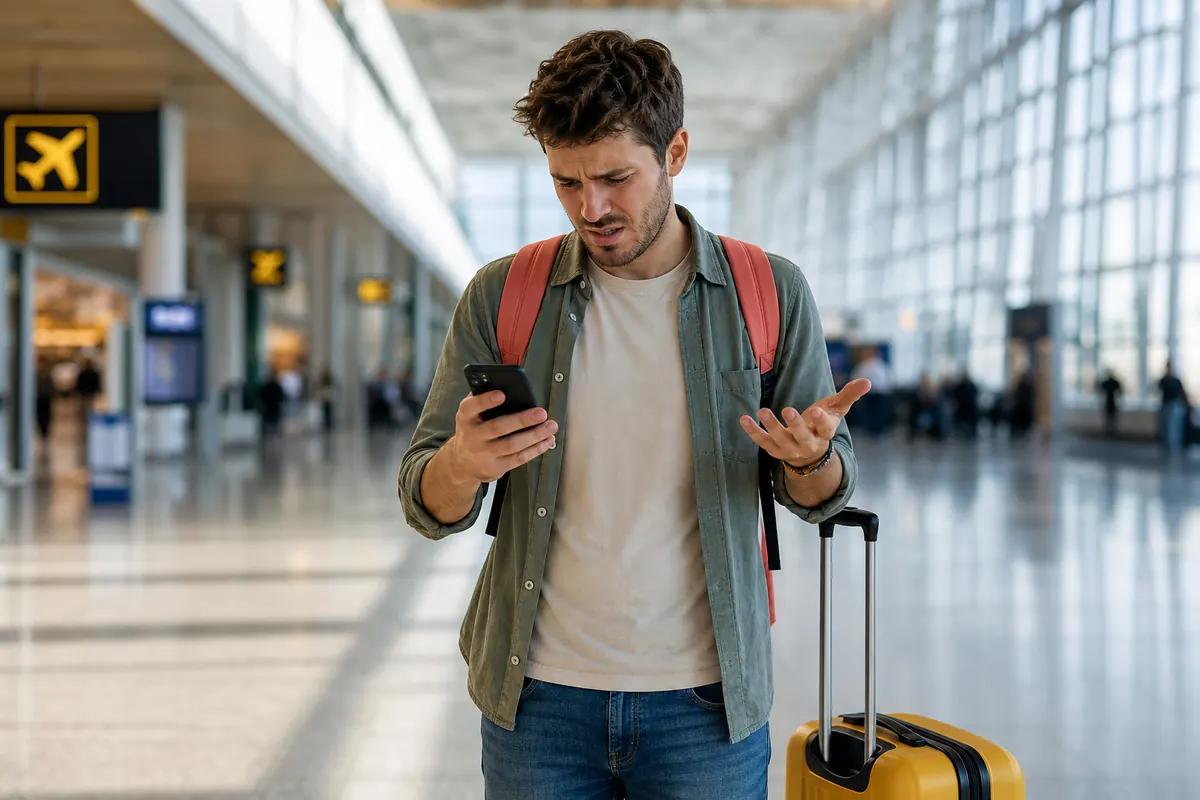
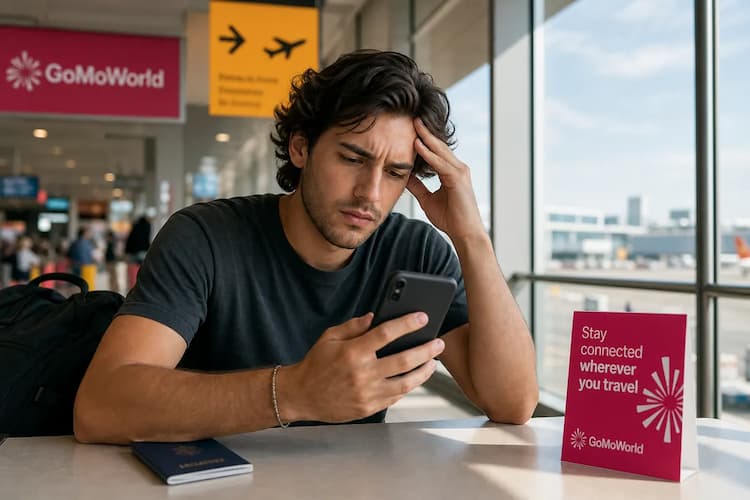
You land in a foreign country, turn off airplane mode, and see "SOS" in the top right corner of your iPhone 11. Your device isn't connected to your cellular network, but you can still make emergency calls. You have no data. You cannot load a map. You need a fix fast. This is one of the most common forms of an iPhone stuck on SOS.
Why Your iPhone 11 Shows SOS Abroad
When your iPhone 11 displays "SOS only", you are out of cellular coverage for your specific carrier plan. The phone detects local cell towers to allow 911 or 112 calls, but it blocks standard data and voice traffic.
Four main issues cause this:
- No international roaming agreement: Your home carrier does not support roaming in your destination.
- Roaming is disabled: Your iPhone settings block foreign network connections to prevent charges.
- Network outage: The local partner network is down in your specific location.
- SIM card error: The phone cannot read your physical SIM card. This triggers an error state. For details on this specific error, read about the "no SIM available" error.
AT&T, Verizon, and T-Mobile charge up to $15 per day for international roaming. If you fix the SOS issue by enabling their daily pass, you face a $225 bill for a 15-day trip.
Quick Fix: Solve It in 2 Minutes
Try these steps immediately to force your iPhone 11 to reconnect to a local network.
Step 1: Toggle Airplane Mode Swipe down from the top right corner. Tap the airplane icon. Wait exactly 30 seconds. Tap it again to turn it off. This forces the iPhone to search for a new cell tower.
Step 2: Check Roaming Settings If your home plan includes international data, you must allow the phone to use it.
- Go to Settings.
- Tap Cellular.
- Tap Cellular Data Options.
- Toggle Data Roaming to the ON position.
Step 3: Restart Your iPhone 11 Hold the side button and either volume button until the power off slider appears. Drag the slider. Wait 30 seconds. Turn the device back on. This clears temporary network caches.
If you restore your connection using your home carrier, monitor your data. Certain apps drain data fast in the background. For a complete guide on managing this, read our guide to controlling background app data.
Advanced Fixes if the Problem Persists
If the SOS icon remains, the issue requires deeper troubleshooting.
Step 4: Update Carrier Settings Carriers release updates to improve connectivity on foreign networks. You need Wi-Fi for this step.
- Connect to a local Wi-Fi network.
- Go to Settings > General > About.
- Wait 15 seconds. If an update is available, a prompt appears. Tap Update.
Step 5: Inspect the Physical SIM Card
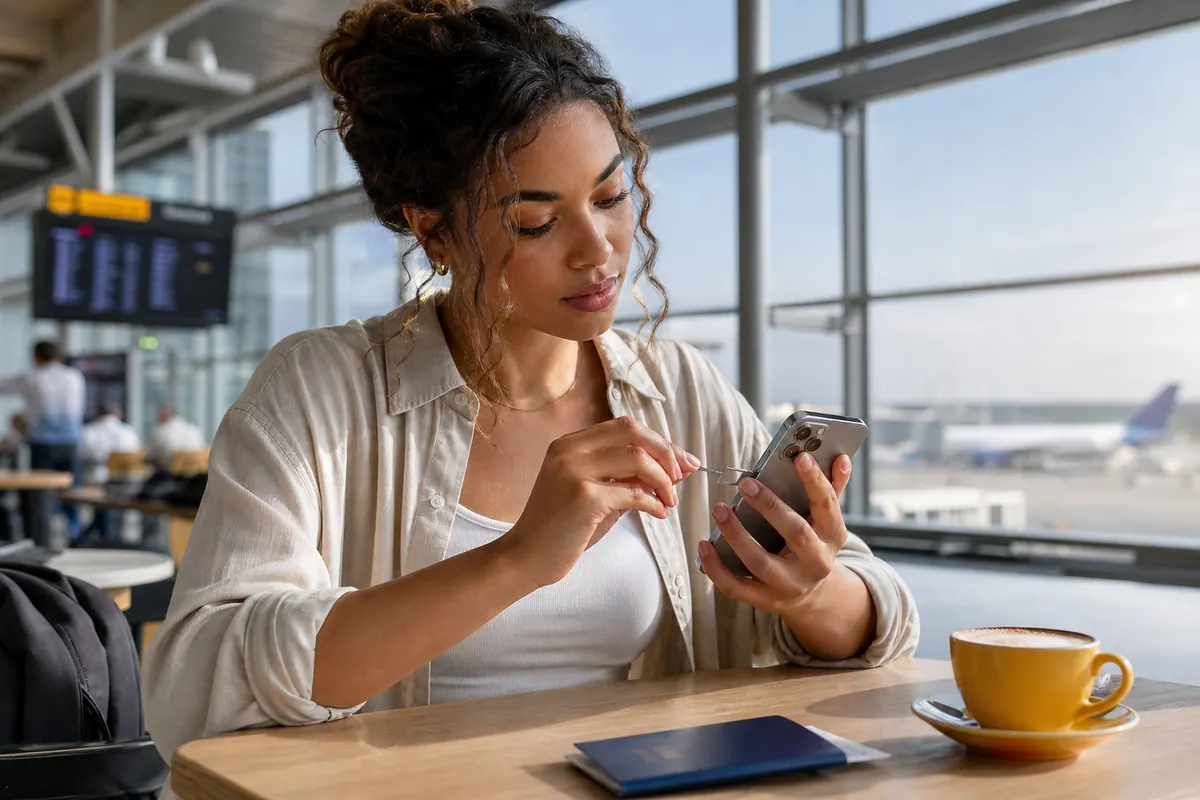
A loose or dirty SIM card drops the network connection entirely.
- Turn off your iPhone 11.
- Insert a paperclip or SIM ejector tool into the hole on the right side.
- Pull out the tray.
- Wipe the gold contacts with a clean, dry microfiber cloth.
- Reinsert the tray firmly. If the card looks physically broken, read about the symptoms of a damaged SIM.
Step 6: Reset Network Settings This deletes all saved Wi-Fi passwords, Bluetooth connections, and VPN profiles. It also resets cellular settings to factory defaults.
- Go to Settings > General.
- Tap Transfer or Reset iPhone.
- Tap Reset.
- Tap Reset Network Settings.
Some users try to fix SOS errors by manually adding an eSIM profile. If you type the server details incorrectly, the connection fails. If you face this exact issue, see configuring the SM-DP+ address.
Differences by Model (iPhone 11 and Earlier Versions)
The iPhone 11 supports both a physical nano-SIM and a digital eSIM. This dual capability makes it highly versatile for travel.
Older models like the iPhone 8 or iPhone X only support one physical SIM card. To get local data on those devices, you must physically remove your home SIM and insert a local prepaid SIM. This means you lose access to your home phone number.
With the iPhone 11, you keep your physical home SIM active for calls and texts. You then download a data-only eSIM for web access. This setup guarantees you never miss a text message from your bank or family. You rely on the eSIM for heavy data tasks. The same lockout hits newer models too, like the iPhone 12 and iPhone 13. You can also manage WhatsApp data usage over the data connection to avoid voice call charges.
How to Prevent This in the Future
Relying on your home carrier abroad leads to SOS errors or massive bills. A data-only GoMoWorld eSIM solves this upfront.
You download the GoMoWorld app before your trip. You buy a data plan for your destination. Installation happens 100% inside the app. No QR codes to scan. No physical stores to visit.
Plans never expire before activation. You buy the plan today and activate it next month. When you land, you open the app and tap "Start". There is no auto-activation. You control exactly when your data usage begins.
GoMoWorld is a prepay service. There are no hidden fees and zero overage charges. When your data runs out, the connection stops. You simply buy another plan if you need more.
| Carrier | Roaming Plan | Estimated Price |
|---|---|---|
| AT&T | International Day Pass | ~$15/day |
| T-Mobile | International Pass | ~$15/day |
| Verizon | TravelPass | ~$10/day |
| GoMoWorld | 15 days, 10GB tailored data | €10.99 |
You keep your home number for calls and SMS. GoMoWorld provides the data. Every plan includes hotspot tethering.
Fix your connection permanently. Get your eSIM →.
FAQ
Why is my phone stuck in SOS mode on my iPhone 11?
Your iPhone 11 is stuck in SOS mode because it cannot detect a valid cellular network from your carrier. This happens when you travel abroad without an active international roaming plan or when your data roaming setting is toggled off.
What causes an iPhone to lose cellular signal?
An iPhone loses cellular signal due to a lack of local cell towers, a carrier outage, or an inactive SIM card. Moving into dead zones like tunnels or remote areas also drops the signal to zero.
Is SOS mode an iPhone hardware issue?
SOS mode is rarely a hardware issue. It is a software state indicating a lack of authorized network coverage. However, a damaged internal SIM reader or a broken physical SIM card can trigger this state permanently.
How to fix SOS on iPhone Verizon?
To fix SOS on a Verizon iPhone, verify that you have TravelPass enabled on your Verizon account. Turn on Data Roaming in your iPhone settings, restart the device, and check for carrier settings updates under Settings > General > About.


Similar articles
SM-DP+ Address: Complete Troubleshooting Guide

WhatsApp While Traveling: Free or Paid? How to Use It
Data Apps Abroad: Comprehensive Troubleshooting Guide
No SIM Available: Causes and Solutions

Hear from our Happy Travelers
4.7
App Store

4.7
Google Play Store

March 5, 2026
Trustworthy and cheap
A trustworthy and economic way of being in contact with home when travelling


February 27, 2026
Excellent esim
Easy to use. Used in many countries and will continue to use gomoworld


February 26, 2026
Best eSIM prices
Excellent price and good network coverage. Used it for my trips to Turkey and Russia, I faced no issues at all. Recommend!


February 10, 2026
Great eSIM service
I use their esim and I have used them all over India, Colombia, Nicaragua and the US and have not had problems with connection, except high in the mountains where no one has it.

February 7, 2026
Works flawlessly from 1st second
Installing and activating is straightforward, testing the system with a free trial in Switzerland worked fine Connection throughout the Gambia was perfect Renewal after expiration was easy, cheap and quick.


January 25, 2026
Really good data plans withs reasonable prices
GoMoWorld offered the best value out of all the options I considered. The app experience was also superior to other services I’ve tried. There was no ID verification requirement. Payment and setup was super easy. It guides you step by step how to install the eSIM and tells you the recommended settings. I would recommend to anyone looking for lots of data with really competitive prices.

What is an eSIM?
We’ll Explain Everything.
A simple, digital solution for staying connected wherever you Go.

Say Goodbye to Physical SIM Cards
No need to handle a physical SIM card (or risk losing yours)—everything is digital with an eSIM.

Quick and Easy Activation.
Download your GoMoWorld eSIM from our app and get connected in minutes. All our plans start at just €3.99, with no subscriptions or hidden fees.

Perfect for Travelers
Keep your regular SIM active for calls and texts while using GoMoWorld for data. You can have both your primary SIM and eSIM active simultaneously, or two eSIMs.


from
€3.99

Still thinking about it?
Download the app and enjoy a risk-free Trial. Experience GoMoWorld travel eSIM now!
