

iPhone 13 Shows SOS Abroad: Causes and Fixes

Simon Muller
Posted on July 18, 2026
iPhone 13 Shows SOS Abroad: Causes and Fixes
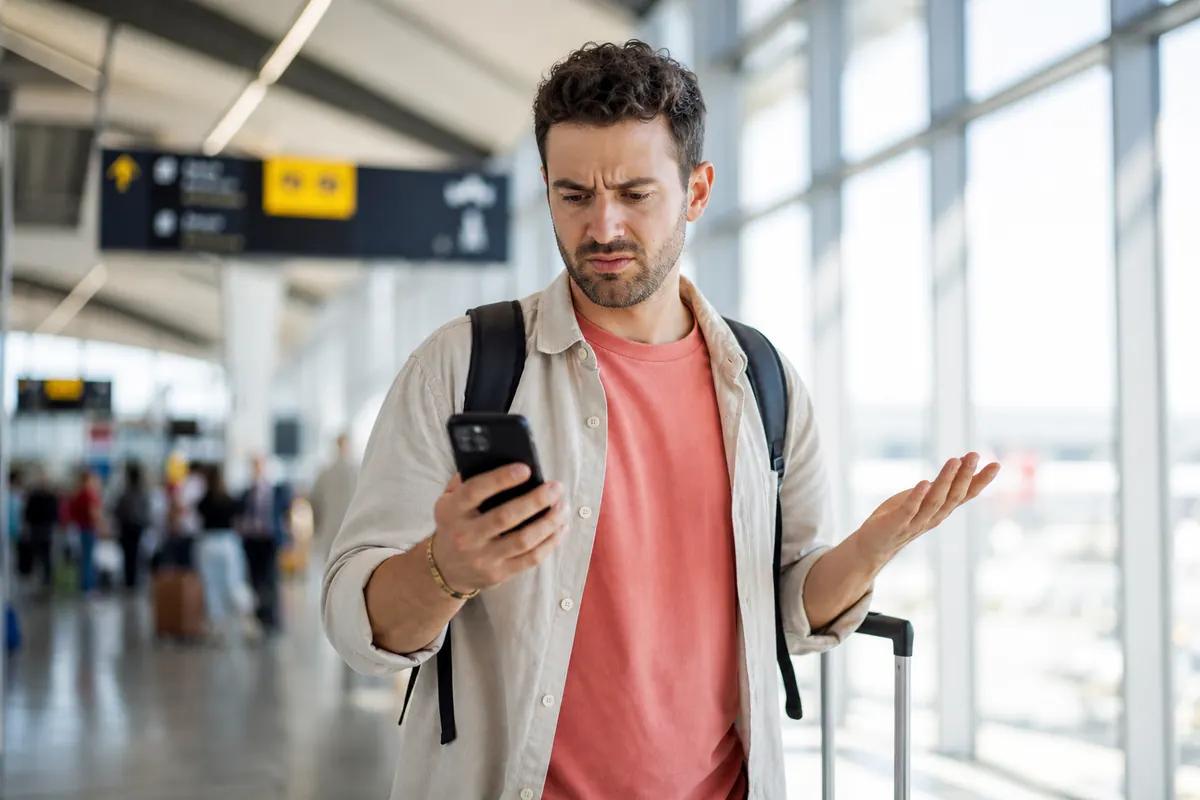
You land in a new country, turn on your iPhone 13, and see "SOS" in the top right corner. You have no network. You cannot load maps, hail a ride, or contact your hotel. AT&T and Verizon charge up to $15 a day for international roaming, but right now, you just need a connection. GoMoWorld fixes this instantly: €10.99 gives you 10GB of data for 15 days, installed directly via our app. No SOS mode. No roaming fees. See the full picture in our guide to an iPhone stuck on SOS.
Why Your iPhone 13 Shows SOS Abroad
When your status bar displays "SOS" or "SOS only", your device isn't connected to your cellular network. You can still make emergency calls, but standard cell service abroad is completely unavailable.
This happens for four specific reasons:
- No roaming agreement: Your home carrier does not have a partnership with local networks in your destination.
- Roaming is disabled: Your iPhone settings block international connections to prevent extra charges.
- Hardware failure: Your physical SIM card shifted during the flight or sustained damage. If you suspect hardware failure, check the symptoms of a damaged SIM.
- Network outage: The local carrier you are trying to connect to is experiencing downtime.
A sudden connection problem abroad forces your phone into SOS mode. It drops standard service to keep emergency lines open.
Quick Fix: Solve It in 2 Minutes
You need your phone working right now. Follow these steps to restore your connection.
1. Toggle Airplane Mode Swipe down from the top right corner to open the Control Center. Tap the Airplane Mode icon. Wait exactly 30 seconds. Tap it again to turn it off. This forces your iPhone 13 to search for a fresh network connection.
2. Enable Data Roaming Go to Settings > Cellular > Cellular Data Options. Toggle "Data Roaming" to ON. Warning: If you use your home carrier (like AT&T or T-Mobile), turning this on triggers daily roaming fees immediately.
3. Force Restart Your iPhone A simple reboot often clears a roaming issue. Press and quickly release the volume up button. Press and quickly release the volume down button. Press and hold the side button until the Apple logo appears.
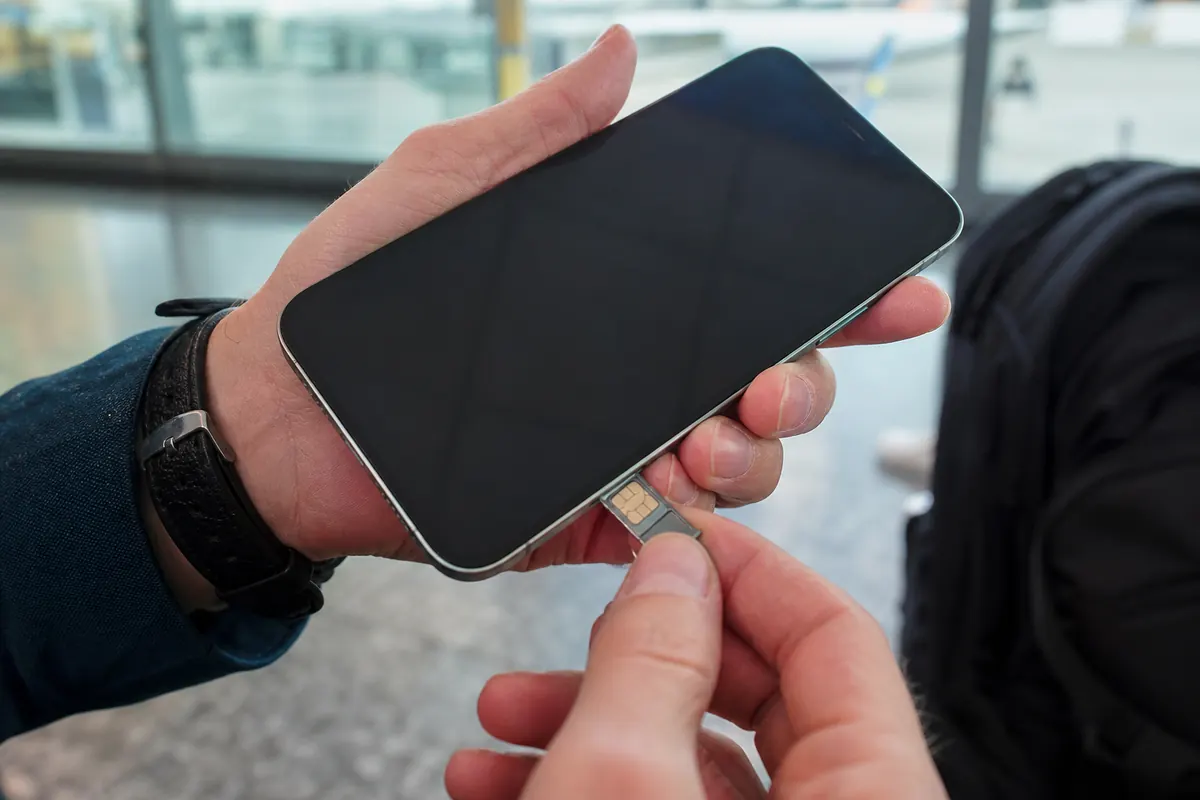
4. Check Your Physical SIM If you use a physical SIM card, use a paperclip to pop out the tray. Wipe the gold contacts with a clean cloth. Reinsert the tray firmly. If your phone suddenly displays a different error, read about the no-SIM message.
Advanced Fixes if the Problem Persists
If your iPhone 13 still shows SOS, you need deeper mobile troubleshooting travel steps.
1. Reset Network Settings This deletes all saved Wi-Fi passwords, Bluetooth connections, and cellular settings. It gives your phone a blank slate. Go to Settings > General > Transfer or Reset iPhone > Reset > Reset Network Settings. Enter your passcode and confirm.
2. Update Carrier Settings Connect to a local Wi-Fi network. Go to Settings > General > About. Wait 15 seconds. If a carrier update is available, a prompt will appear. Tap "Update". Carriers release these updates to improve connectivity on foreign networks.
3. Check Your eSIM Configuration If you purchased a digital data plan, ensure the line is active. Go to Settings > Cellular. Tap your travel eSIM line and toggle "Turn On This Line". Some providers require manual network selection. If you encounter manual installation errors with other providers, review the SM-DP+ activation server.
4. Review App Permissions Sometimes background data restrictions block essential system processes from connecting. Learn how to manage these settings by reading about managing app data abroad.
Differences by Model (iPhone 13 and Earlier Versions)
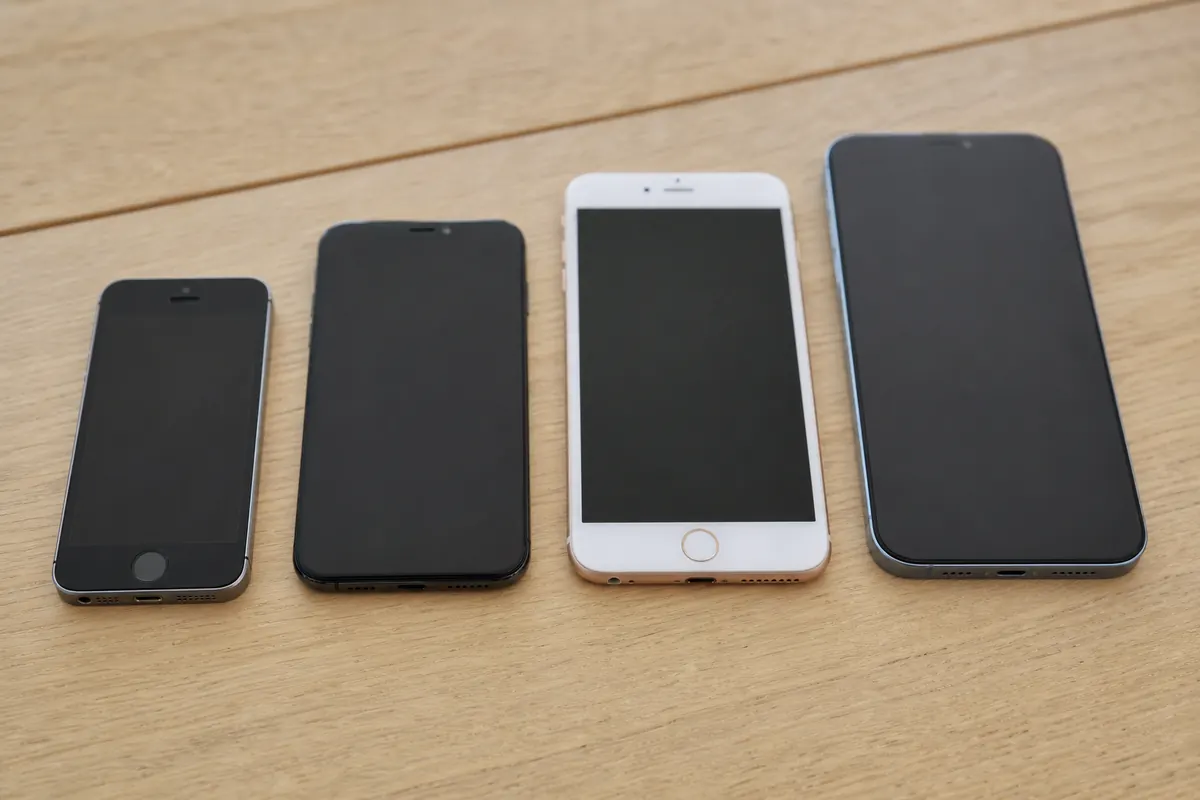
The iPhone 13 handles networks differently than older models. It supports dual eSIM functionality. You can have two active eSIMs running at the exact same time. Older models, like the iPhone 11 or 12, only support one active eSIM alongside a physical SIM. The same SOS state appears on the iPhone 11 and iPhone 14.
This dual eSIM feature is a massive advantage for travelers. You can keep your primary home number active for calls and texts while running a separate data-only eSIM for web access. You avoid roaming charges but stay reachable.
With a strong data connection secured, you can bypass traditional SMS entirely. Keep an eye on WhatsApp data usage to message friends and family using your travel data allowance.
How to Prevent This in the Future
Relying on your home carrier abroad guarantees stress. You either face unexpected SOS modes or massive daily fees. AT&T charges up to $15 per day for international roaming. A two-week trip costs you $210 in data alone.
A GoMoWorld eSIM solves this upfront. You keep your home number for calls and texts, with a dedicated data plan in your destination.
GoMoWorld is data-only. Installation happens 100% via the GoMoWorld app. There is no QR code to scan. You buy your plan today, and it never expires until you activate it. When you land, you open the app and tap "Start". There is no auto-activation. You control exactly when your plan begins. Hotspot is included on all plans, allowing you to share your data with a laptop or tablet.
| Carrier | Roaming Plan | Estimated Price |
|---|---|---|
| AT&T | International Day Pass | ~$15/day |
| Verizon | TravelPass | ~$10 - $15/day |
| T-Mobile | International Pass | ~$5 - $15/day |
| GoMoWorld eSIM | 15 days, 10GB | €10.99 |
Stop overpaying for unreliable roaming. Get your connection sorted before you fly. eSIM →
FAQ
How do I get my iPhone 13 out of SOS mode?
Turn on Airplane mode for 30 seconds, then turn it off to force a network refresh. If that fails, go to Settings > Cellular and ensure Data Roaming is enabled. Finally, try a force restart by pressing volume up, volume down, and holding the side button.
How do I fix my iPhone stuck on SOS only?
Reset your network settings. Go to Settings > General > Transfer or Reset iPhone > Reset > Reset Network Settings. Ensure your carrier actually supports roaming in your current location by checking their coverage map online.
Why does my iPhone 13 have SOS?
Your device isn't connected to your cellular network. This happens when you lack local coverage, have roaming disabled in your settings, or face a carrier outage. You can still make emergency calls to local authorities.
What triggers SOS mode?
SOS mode triggers automatically when your phone loses connection to your primary carrier but detects other available networks. It restricts the phone to emergency calls only. Traveling abroad without an active roaming plan or eSIM is the most common trigger.


Similar articles
SM-DP+ Address: Complete Troubleshooting Guide

WhatsApp While Traveling: Free or Paid? How to Use It
Data Apps Abroad: Comprehensive Troubleshooting Guide
No SIM Available: Causes and Solutions

Hear from our Happy Travelers
4.7
App Store

4.7
Google Play Store

March 5, 2026
Trustworthy and cheap
A trustworthy and economic way of being in contact with home when travelling


February 27, 2026
Excellent esim
Easy to use. Used in many countries and will continue to use gomoworld


February 26, 2026
Best eSIM prices
Excellent price and good network coverage. Used it for my trips to Turkey and Russia, I faced no issues at all. Recommend!


February 10, 2026
Great eSIM service
I use their esim and I have used them all over India, Colombia, Nicaragua and the US and have not had problems with connection, except high in the mountains where no one has it.

February 7, 2026
Works flawlessly from 1st second
Installing and activating is straightforward, testing the system with a free trial in Switzerland worked fine Connection throughout the Gambia was perfect Renewal after expiration was easy, cheap and quick.


January 25, 2026
Really good data plans withs reasonable prices
GoMoWorld offered the best value out of all the options I considered. The app experience was also superior to other services I’ve tried. There was no ID verification requirement. Payment and setup was super easy. It guides you step by step how to install the eSIM and tells you the recommended settings. I would recommend to anyone looking for lots of data with really competitive prices.

What is an eSIM?
We’ll Explain Everything.
A simple, digital solution for staying connected wherever you Go.

Say Goodbye to Physical SIM Cards
No need to handle a physical SIM card (or risk losing yours)—everything is digital with an eSIM.

Quick and Easy Activation.
Download your GoMoWorld eSIM from our app and get connected in minutes. All our plans start at just €3.99, with no subscriptions or hidden fees.

Perfect for Travelers
Keep your regular SIM active for calls and texts while using GoMoWorld for data. You can have both your primary SIM and eSIM active simultaneously, or two eSIMs.


from
€3.99

Still thinking about it?
Download the app and enjoy a risk-free Trial. Experience GoMoWorld travel eSIM now!