
Low Power Mode iPhone: Causes and Fixes

Simon Muller
Posted on July 21, 2026

Low Power Mode iPhone: Causes and Fixes
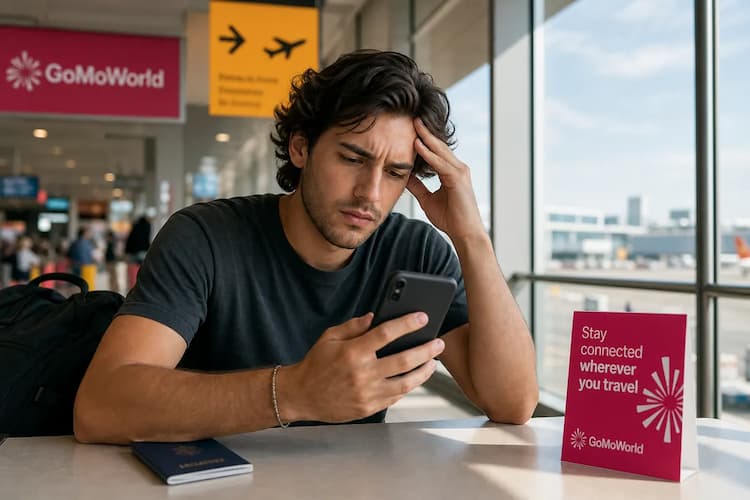
You land in Rome. Your iPhone battery icon turns yellow. Your messages stop syncing. You cannot load your map. It looks like other network problems abroad, such as a network unavailable abroad or how to disable roaming on Android.
Apple uses two distinct features to save your resources: Low Power Mode for battery life and Low Data Mode for cellular usage. Both activate automatically or manually when you travel. They restrict background tasks. They throttle your processor. They cut off your connection when you need it most.
Travelers often enable these settings out of fear. AT&T charges up to $15 a day for international roaming. You try to limit background usage. The result is a broken phone experience.
Why does this problem occur?
Your iPhone reacts to your environment. When your battery drops below 20%, iOS prompts you to enable Low Power Mode. This limits background activity like email fetch and downloads.
Low Data Mode works differently. It targets your cellular connection. When you connect to a new foreign network, iOS might restrict data usage. This prevents massive roaming bills.
Background apps consume data constantly. Cloud backups, photo syncs, and software updates drain megabytes in seconds. This aggressive data consumption leads to heavy charges. It also causes specific software errors. You can read more about controlling background app data.
When both modes run simultaneously, your iPhone becomes a basic cell phone. Push notifications stop. High-quality video streaming drops. Apps refuse to refresh until you open them.
Quick fix (solves 80% of cases)
You can disable these restrictions in seconds. Check your settings directly.
Step 1: Disable Low Power Mode
- Open the Settings app.
- Scroll down and tap Battery.
- Toggle off Low Power Mode. Your battery icon will turn from yellow back to white or green.
Step 2: Disable Low Data Mode for Cellular
- Open the Settings app.
- Tap Cellular (or Mobile Data).
- Tap Cellular Data Options.
- Toggle off Low Data Mode.
Step 3: Disable Low Data Mode for Wi-Fi
- Open the Settings app.
- Tap Wi-Fi.
- Tap the "i" icon next to your connected network.
- Toggle off Low Data Mode.
If your device still refuses to connect to the internet after changing these settings, you might have a hardware issue. A broken physical chip prevents network access entirely. Review the symptoms of a damaged SIM card to diagnose physical damage.
Advanced fixes
Sometimes the basic toggles do not work. iOS beta versions occasionally freeze the Low Data Mode switch. Carrier profiles can also lock these settings.
Reset Network Settings A misconfigured carrier profile forces your phone into a restricted state. Clear the old data.
- Go to Settings > General.
- Tap Transfer or Reset iPhone.
- Tap Reset.
- Select Reset Network Settings. You will lose saved Wi-Fi passwords, but this forces a fresh connection to the cell tower.
Check App-Specific Cellular Restrictions You might have disabled cellular access for individual apps to save data.
- Go to Settings > Cellular.
- Scroll down to your app list.
- Ensure the toggle next to your required apps is green.
Troubleshoot eSIM Profiles Manual eSIM configuration sometimes causes data flow issues. If you pasted the wrong activation code, the network will reject your device. Check by configuring the SM-DP+ address to verify your server details.
If your phone shows "SOS" or completely drops the network, the carrier might be blocking your device abroad. To fix a dead connection, read about the "no SIM available" error.
Prevention
Stop relying on expensive carrier roaming. Stop throttling your own phone. You do not need Low Data Mode if you have a massive data allowance.
A GoMoWorld eSIM solves this problem upfront. You download the GoMoWorld app. You choose your destination. You install the eSIM directly through the app. No QR codes. No physical stores.
GoMoWorld plans never expire until you activate them. Buy your plan at home. Land at your destination. Open the app and tap "Start". Your data flows immediately.
You keep your home number active for calls and texts. GoMoWorld handles the data. You can use your messaging apps normally. Learn how much data WhatsApp uses.
Every GoMoWorld plan includes hotspot functionality. You can share your connection with your laptop or travel partner. Because it is a prepay system, overage fees do not exist. When your data runs out, the connection stops. You simply buy another plan if needed.
Compare the costs. Traditional carriers punish you for using data abroad.
| Carrier | Roaming Plan | Estimated Price |
|---|---|---|
| AT&T | International Day Pass | ~$15/day |
| T-Mobile | International plan | ~$15/day |
| Verizon | TravelPass | ~$15/day |
| GoMoWorld eSIM | 15 days, 10GB | €10.99 |
For shorter trips, you pay €3.99 for 3GB over 7 days. For longer stays, get 25GB for 30 days at €19.99. Stop worrying about background syncs. Turn off Low Data Mode and use your phone normally. Get your GoMoWorld eSIM →
FAQ
Why shouldn't you put your iPhone in Low Power Mode permanently?
Low Power Mode throttles your iPhone processor by up to 50%. It disables background app refresh, delays email fetching, and stops automatic downloads. Running it permanently degrades your daily user experience and prevents important notifications from arriving on time.
What does Low Power Mode actually do on iPhone?
It reduces background activity to save battery life. The feature dims your screen, limits frame rates on newer models, and pauses iCloud photo syncing. 5G connectivity is also heavily restricted unless you are actively streaming video.
What is Low Data Mode on iPhone?
Low Data Mode reduces your cellular and Wi-Fi data usage. It pauses automatic updates, stops background tasks, and reduces the quality of streaming content. It is designed to help users on limited data plans avoid overage charges.
Is it good to use Low Power Mode?
Yes, temporarily. It is highly effective when your battery drops below 20% and you are far from a charger. However, using it constantly limits your device's performance and prevents apps from functioning correctly in the background.


Similar articles

SM-DP+ Address: Complete Troubleshooting Guide

WhatsApp While Traveling: Free or Paid? How to Use It

Data Apps Abroad: Comprehensive Troubleshooting Guide
No SIM Available: Causes and Solutions

Hear from our Happy Travelers
4.7
App Store

4.7
Google Play Store

March 5, 2026
Trustworthy and cheap
A trustworthy and economic way of being in contact with home when travelling


February 27, 2026
Excellent esim
Easy to use. Used in many countries and will continue to use gomoworld


February 26, 2026
Best eSIM prices
Excellent price and good network coverage. Used it for my trips to Turkey and Russia, I faced no issues at all. Recommend!


February 10, 2026
Great eSIM service
I use their esim and I have used them all over India, Colombia, Nicaragua and the US and have not had problems with connection, except high in the mountains where no one has it.

February 7, 2026
Works flawlessly from 1st second
Installing and activating is straightforward, testing the system with a free trial in Switzerland worked fine Connection throughout the Gambia was perfect Renewal after expiration was easy, cheap and quick.


January 25, 2026
Really good data plans withs reasonable prices
GoMoWorld offered the best value out of all the options I considered. The app experience was also superior to other services I’ve tried. There was no ID verification requirement. Payment and setup was super easy. It guides you step by step how to install the eSIM and tells you the recommended settings. I would recommend to anyone looking for lots of data with really competitive prices.

What is an eSIM?
We’ll Explain Everything.
A simple, digital solution for staying connected wherever you Go.

Say Goodbye to Physical SIM Cards
No need to handle a physical SIM card (or risk losing yours)—everything is digital with an eSIM.

Quick and Easy Activation.
Download your GoMoWorld eSIM from our app and get connected in minutes. All our plans start at just €3.99, with no subscriptions or hidden fees.

Perfect for Travelers
Keep your regular SIM active for calls and texts while using GoMoWorld for data. You can have both your primary SIM and eSIM active simultaneously, or two eSIMs.


from
€3.99

Still thinking about it?
Download the app and enjoy a risk-free Trial. Experience GoMoWorld travel eSIM now!
