
Reset Network Settings iPhone: Causes and Solutions

Simon Muller
Posted on July 29, 2026

Reset Network Settings iPhone: Causes and Solutions
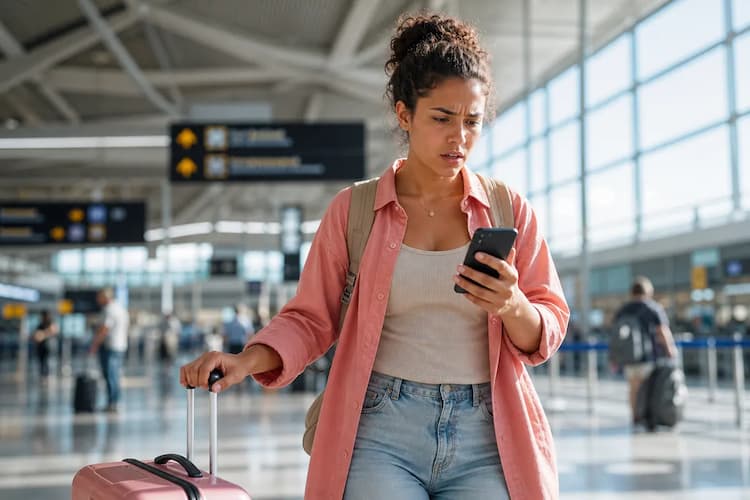
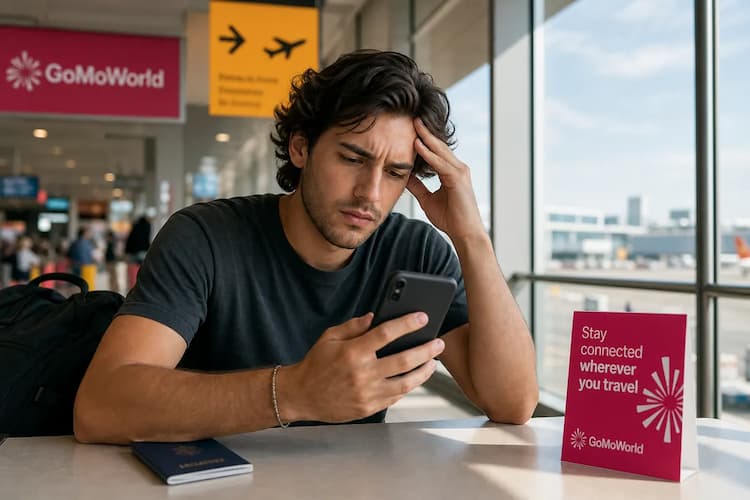
You land at JFK, turn on your iPhone, and see "No Service" in the top corner. You toggle Airplane Mode. Nothing happens. You need a data connection to order an Uber, but your phone refuses to connect to the local network. If the issue is a broader network unavailable abroad problem, start there.
When your iPhone fails to connect abroad, resetting your network settings is the fastest way to force the device to find a signal. Here is exactly how to diagnose the problem, reset your device, and get your connection back online without paying massive roaming fees. For the full picture, see our guide to network problems abroad.
Why Does This Problem Occur?
Network failures happen when your iPhone struggles to transition between carriers. When you cross a border, your phone must drop your home carrier and perform a digital handshake with a foreign partner network. This handoff frequently fails.
Your iPhone relies on APN (Access Point Name) settings to connect to the mobile web. Think of the APN as the secure gateway between your device and the internet. If your iPhone holds onto an outdated APN or caches corrupted carrier data, the foreign network rejects your connection. You might see 5G in the status bar, but no websites will load.
Hardware issues also cause sudden signal drops. Physical SIM cards degrade over time. The gold contacts get scratched, or the card shifts inside the tray. If your phone cannot read the chip, you lose service instantly. Read our damaged SIM card guide to identify physical damage.
In other cases, the iOS software simply fails to recognize the tray's contents. If you see a specific alert on your screen regarding a missing chip, check our troubleshooting steps for fixing a phone that shows no SIM available.
Quick Fix (Solves 80% of Cases)
Resetting your network settings clears out bad caches and forces your iPhone to download fresh carrier configurations. This process takes less than two minutes.
Here are the exact steps for iOS:
- Open the Settings app on your iPhone.
- Tap General.
- Scroll to the bottom and tap Transfer or Reset iPhone.
- Tap Reset.
- Select Reset Network Settings.
- Enter your passcode and confirm.
Your iPhone will restart immediately.
What happens to your data? This reset deletes all saved Wi-Fi passwords, Bluetooth pairings, and custom VPN configurations. You will need to reconnect your Apple Watch and re-enter your hotel Wi-Fi password.
What stays safe? Your photos, messages, apps, and Safari tabs remain completely untouched. This is not a factory reset.
Once your phone reboots, it will search for the nearest cell tower. In 80% of cases, this restores your cellular data. However, sometimes the network connects, yet you still cannot browse the web. If your browser works but your apps stay offline, review our guide on managing app data usage abroad.
Advanced Solutions
If the reset fails and your iPhone still shows "SOS" or "No Service", you need to dig deeper into your cellular settings.
1. Force a Manual Network Selection By default, your iPhone automatically selects a local carrier. Sometimes, it picks a congested or dead network.
- Go to Settings > Cellular > Network Selection.
- Turn off Automatic.
- Wait 30 seconds for the list of local carriers to populate.
- Tap a different network from the list.
2. Check Data Roaming If you are trying to use your home plan abroad, roaming must be active.
- Go to Settings > Cellular > Cellular Data Options.
- Ensure Data Roaming is toggled on.
3. Troubleshoot Manual eSIM Installations If you bought a local eSIM from another provider, you might face installation errors. Many traditional providers force you to scan a QR code or type in a long server address manually. If you paste the wrong code, the eSIM fails to connect to the network. Learn how to troubleshoot this exact SM-DP+ address error.
4. Check Your Roaming Costs If you rely on your home carrier abroad, a working connection comes with a massive bill. AT&T and Verizon charge up to $15 per day just to access your domestic data allowance.
| Carrier | Roaming Plan | Estimated Price |
|---|---|---|
| AT&T | International Day Pass | ~$15/day |
| T-Mobile | International plan | ~$15/day |
| Verizon | TravelPass | ~$15/day |
| GoMoWorld eSIM | 15 days, 10GB | €10.99 |
Prevention

Stop fighting with network settings and traditional roaming charges. A GoMoWorld eSIM solves connectivity issues upfront.
You keep your home physical SIM active for calls and texts. You use GoMoWorld for a dedicated, high-speed data connection. This setup guarantees you stay connected without triggering daily overage fees from your home carrier. GoMoWorld is strictly data-only.
Everything happens inside the GoMoWorld app. You download the app on iOS or Android, choose your destination, and buy a plan.
GoMoWorld never uses QR codes. The app handles the entire installation process directly on your device. You buy your plan now, and it never expires until you activate it. You control the activation completely. Tap "Start" in the app when you land. There is no auto-activation, which means no surprise charges.
Prices are fixed and transparent. You get 3GB for 7 days at €3.99, 10GB for 15 days at €10.99, or 25GB for 30 days at €19.99. Hotspot capabilities are included on all plans. Because GoMoWorld uses a prepay system, overage fees do not exist. When your data runs out, the connection stops. You simply buy another plan to get back online.
With a solid data connection, you bypass traditional voice charges entirely. Keep your home line for emergencies, and use your data allowance for daily communication. Discover more about how to use WhatsApp abroad. To prevent network headaches on your next trip, get your data sorted before you fly. Get your GoMoWorld eSIM today →
FAQ
Why reset network settings on iPhone?
You reset network settings when your iPhone fails to connect to cellular data, drops Wi-Fi signals, or refuses to pair with Bluetooth devices. It forces the device to clear outdated caches and download fresh configuration data from the local cell towers.
What happens when you reset network settings?
The process deletes all saved Wi-Fi passwords, Bluetooth pairings, and VPN configurations. It resets your cellular settings to their factory defaults. Your personal data, including photos, apps, and messages, are not deleted.
How do I reset the network on my iPhone?
Open the Settings app. Tap General. Scroll down and tap Transfer or Reset iPhone. Tap Reset, then select Reset Network Settings. Enter your passcode to confirm and wait for the device to restart.
Does resetting network settings delete everything?
No. A network reset only affects your connectivity configurations. It does not erase your local files, contacts, or app data. You will only need to reconnect to your Wi-Fi networks and Bluetooth accessories after the reboot.


Similar articles
SM-DP+ Address: Complete Troubleshooting Guide

WhatsApp While Traveling: Free or Paid? How to Use It

Data Apps Abroad: Comprehensive Troubleshooting Guide
No SIM Available: Causes and Solutions

Hear from our Happy Travelers
4.7
App Store

4.7
Google Play Store

March 5, 2026
Trustworthy and cheap
A trustworthy and economic way of being in contact with home when travelling


February 27, 2026
Excellent esim
Easy to use. Used in many countries and will continue to use gomoworld


February 26, 2026
Best eSIM prices
Excellent price and good network coverage. Used it for my trips to Turkey and Russia, I faced no issues at all. Recommend!


February 10, 2026
Great eSIM service
I use their esim and I have used them all over India, Colombia, Nicaragua and the US and have not had problems with connection, except high in the mountains where no one has it.

February 7, 2026
Works flawlessly from 1st second
Installing and activating is straightforward, testing the system with a free trial in Switzerland worked fine Connection throughout the Gambia was perfect Renewal after expiration was easy, cheap and quick.


January 25, 2026
Really good data plans withs reasonable prices
GoMoWorld offered the best value out of all the options I considered. The app experience was also superior to other services I’ve tried. There was no ID verification requirement. Payment and setup was super easy. It guides you step by step how to install the eSIM and tells you the recommended settings. I would recommend to anyone looking for lots of data with really competitive prices.

What is an eSIM?
We’ll Explain Everything.
A simple, digital solution for staying connected wherever you Go.

Say Goodbye to Physical SIM Cards
No need to handle a physical SIM card (or risk losing yours)—everything is digital with an eSIM.

Quick and Easy Activation.
Download your GoMoWorld eSIM from our app and get connected in minutes. All our plans start at just €3.99, with no subscriptions or hidden fees.

Perfect for Travelers
Keep your regular SIM active for calls and texts while using GoMoWorld for data. You can have both your primary SIM and eSIM active simultaneously, or two eSIMs.


from
€3.99

Still thinking about it?
Download the app and enjoy a risk-free Trial. Experience GoMoWorld travel eSIM now!
