
iPhone Shows SOS Abroad: Causes and Fixes

Simon Muller
Posted on July 20, 2026

iPhone Shows SOS Abroad: Causes and Fixes
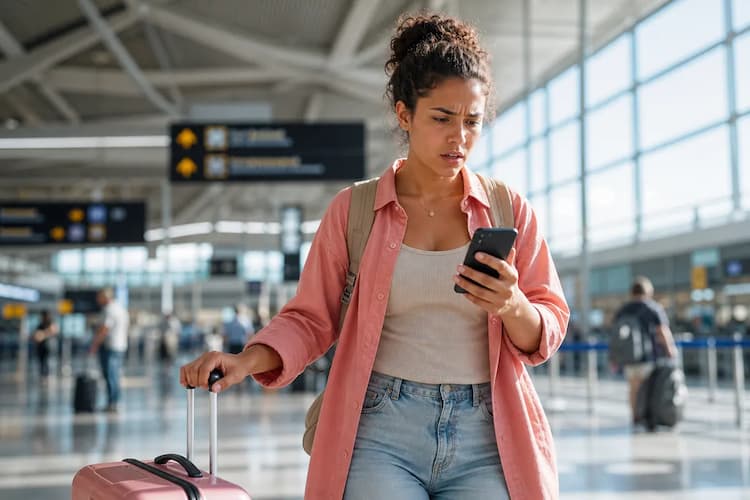
You land in a new country, turn off airplane mode, and see "SOS" on your screen. Your iPhone refuses to connect to a 4G or 5G network. Standard carriers charge up to $15 a day for international roaming. GoMoWorld fixes this connectivity issue upfront. You pay €10.99 for 10GB over 15 days, tailored to your destination. This perfectly illustrates an iPhone stuck on SOS.
Why your iPhone shows SOS abroad
The "SOS" icon means your iPhone has lost its connection to a standard cellular network. Your device restricts you to emergency calls only. It connects to any available tower just for 911 or 112. You cannot browse the web, send standard texts, or make regular phone calls.
Four main issues trigger this error when you travel.
First, your data roaming is off. Most carriers disable international roaming by default. Your iPhone detects foreign cell towers but refuses to connect to them.
Second, you have entered a dead zone. You might be in a rural area, a basement, or a concrete building. The phone physically cannot reach a cell tower.
Third, your home carrier has an outage. Your provider must maintain active roaming agreements with foreign networks. If their international routing fails, your phone drops to SOS mode.
Fourth, your physical SIM card has failed. Dust, moisture, or a bent tray can break the connection between the chip and your iPhone. A broken SIM card triggers this error instantly. You can diagnose this hardware issue by reading about the "no SIM available" error. If you suspect physical damage to the tray, check out the symptoms of a damaged SIM.
Quick fix: solve the problem in 2 minutes
You can resolve most SOS network errors with a few quick taps. Follow these steps before you change any advanced settings.
- Toggle Airplane Mode. Swipe down from the top right of your screen. Tap the airplane icon to turn it on. Wait exactly 30 seconds. Tap it again to turn it off. This forces your iPhone to search for a fresh network connection.
- Enable Data Roaming. Open Settings. Tap Cellular, then Cellular Data Options. Toggle the Data Roaming switch to the green "on" position. Your phone needs this permission to use foreign cell towers.
- Restart your iPhone. Hold the power button and the volume up button. Slide to power off. Wait one minute, then turn the device back on. A simple reboot clears temporary software bugs blocking your connection.
Fixing this basic connection allows your phone to load maps and translation tools again. If specific apps still refuse to load data, learn more about controlling background app data.
Advanced solutions if the problem persists
If your iPhone still displays SOS after a restart, you need to dig deeper into your network settings.
Force a manual network selection. Your iPhone normally picks the best local network automatically. Sometimes, it chooses a broken network. Open Settings. Tap Cellular, then Network Selection. Turn off the Automatic toggle. A list of local carriers will appear after a 30-second search. Tap a different network from the list. Wait a minute to see if the SOS icon disappears.
Check for carrier settings updates. Apple and your carrier push hidden updates to improve network compatibility. Connect to a local Wi-Fi network. Open Settings. Tap General, then About. Wait 15 seconds. If an update is available, a prompt will appear on your screen. Tap Update.
Reset your network settings. This step wipes all saved Wi-Fi passwords, Bluetooth devices, and cellular preferences. It fixes deep software conflicts. Open Settings. Tap General, then Transfer or Reset iPhone. Tap Reset, then choose Reset Network Settings. Your phone will restart automatically.
Verify your eSIM profile. If you use a digital SIM, ensure the line is active in your Cellular settings. Need help troubleshooting digital profiles? Read our guide on configuring the SM-DP+ address.
Differences by model (iPhone and older versions)
Apple changed how the SOS feature works on newer devices. The hardware inside your specific iPhone determines your emergency options.
iPhone 14, iPhone 15, and iPhone 16 models feature Emergency SOS via satellite. If you travel outside of all cellular and Wi-Fi coverage, you can still text emergency services. Your iPhone guides you to point the device at a passing satellite. This feature requires a clear view of the sky.
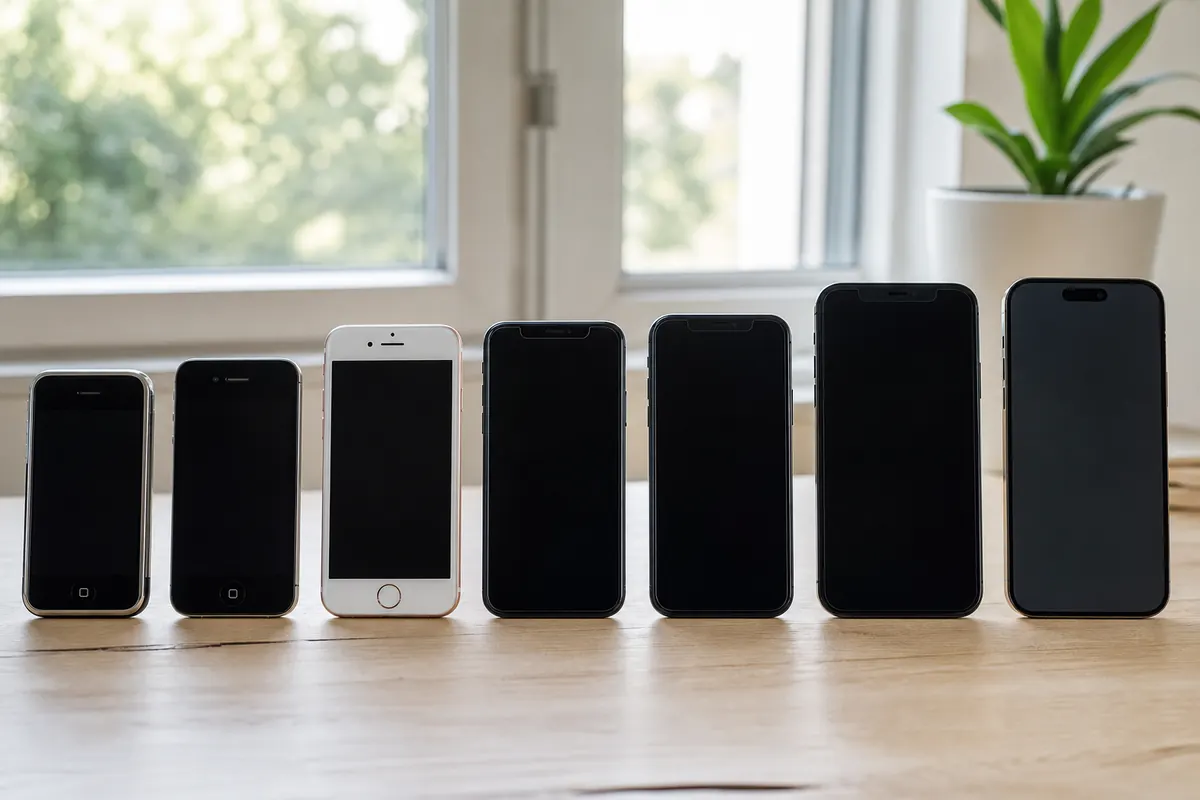
iPhone 13 and older models do not have satellite hardware. They display "SOS only" but rely entirely on local cell towers. If you hike into a remote mountain range with an iPhone 12, the SOS icon will disappear completely. The screen will change to "No Service." You have no emergency backup in this state. The iPhone 11 and iPhone 13 behave the same way.
Both versions block standard internet access and social media until you restore a 4G or 5G connection.
Avoid this problem in the future
Relying on your home carrier abroad causes massive roaming bills and network dropouts. A GoMoWorld eSIM solves this problem before you board your flight.
You download the GoMoWorld app on iOS or Android. Installation happens 100% via the app. You never scan a QR code. You keep your home number active for calls and texts, and use GoMoWorld exclusively for data. Want to make voice calls over data? Read about WhatsApp data usage.
Plans never expire until you activate them. You buy your data plan at home. When you land, you open the app and tap "Start". You control exactly when your data usage begins.
GoMoWorld operates on a strict prepay system. You pay upfront. No overage fees exist. When your data runs out, you simply buy another plan. You also get mobile hotspot included on all plans.
| Carrier | Roaming Plan | Estimated Price |
|---|---|---|
| AT&T | International Day Pass | ~$15/day |
| Verizon | TravelPass | ~$10/day |
| T-Mobile | International Pass | ~$15/day |
| GoMoWorld eSIM | 15 days, 10GB | €10.99 |
Stop fighting with your network settings and avoid $15 daily charges. GoMoWorld gives you fixed prices everywhere: €3.99 for 7 days (3GB), €10.99 for 15 days (10GB), and €19.99 for 30 days (25GB). eSIM →
FAQ
Why is my iPhone stuck in SOS mode?
Your iPhone stays in SOS mode because it cannot authenticate with a local cell tower. This happens due to disabled data roaming, home carrier outages, or a faulty physical SIM card.
Why is my phone in SOS mode when there is a network?
You see SOS because your specific carrier has no roaming agreement with the available local networks. The phone detects the cell towers but is blocked from using them for anything except emergency calls.
How do I restore 4G on my iPhone?
Go to Settings > Cellular > Cellular Data Options and turn on Data Roaming. If that fails, restart your phone or manually select a different local network in the Cellular settings menu.
How do I get out of SOS mode?
Toggle Airplane mode on for 30 seconds, then turn it off. If you still see the SOS icon, reset your network settings via Settings > General > Transfer or Reset iPhone > Reset.


Similar articles
SM-DP+ Address: Complete Troubleshooting Guide

WhatsApp While Traveling: Free or Paid? How to Use It

Data Apps Abroad: Comprehensive Troubleshooting Guide
No SIM Available: Causes and Solutions

Hear from our Happy Travelers
4.7
App Store

4.7
Google Play Store

March 5, 2026
Trustworthy and cheap
A trustworthy and economic way of being in contact with home when travelling


February 27, 2026
Excellent esim
Easy to use. Used in many countries and will continue to use gomoworld


February 26, 2026
Best eSIM prices
Excellent price and good network coverage. Used it for my trips to Turkey and Russia, I faced no issues at all. Recommend!


February 10, 2026
Great eSIM service
I use their esim and I have used them all over India, Colombia, Nicaragua and the US and have not had problems with connection, except high in the mountains where no one has it.

February 7, 2026
Works flawlessly from 1st second
Installing and activating is straightforward, testing the system with a free trial in Switzerland worked fine Connection throughout the Gambia was perfect Renewal after expiration was easy, cheap and quick.


January 25, 2026
Really good data plans withs reasonable prices
GoMoWorld offered the best value out of all the options I considered. The app experience was also superior to other services I’ve tried. There was no ID verification requirement. Payment and setup was super easy. It guides you step by step how to install the eSIM and tells you the recommended settings. I would recommend to anyone looking for lots of data with really competitive prices.

What is an eSIM?
We’ll Explain Everything.
A simple, digital solution for staying connected wherever you Go.

Say Goodbye to Physical SIM Cards
No need to handle a physical SIM card (or risk losing yours)—everything is digital with an eSIM.

Quick and Easy Activation.
Download your GoMoWorld eSIM from our app and get connected in minutes. All our plans start at just €3.99, with no subscriptions or hidden fees.

Perfect for Travelers
Keep your regular SIM active for calls and texts while using GoMoWorld for data. You can have both your primary SIM and eSIM active simultaneously, or two eSIMs.


from
€3.99

Still thinking about it?
Download the app and enjoy a risk-free Trial. Experience GoMoWorld travel eSIM now!
